Start by searching for a desired item. Locate the search box at the top of the page. Click within the box and start typing what you wish to search for. As you are typing search suggestions will start to populate in the drop down below. You may choose to click on one of the bellow suggestions or continue typing and press enter once ready to search. For this example, we are searching for a wrench and pressing enter. This will bring us to a search result page that displays multiple wrenches.
On the left side of the page there is a multitude of drop-downs that can be used to filter down search results. Click on one of the drop-downs. A selection of filters will populate. Click the square next to the desired filter to select it. You can select multiple filters narrowing down the search results even more.
For example, the search for Wrench has more than 2000 Items. Filtering by brand, size general, and branch type I am able to narrow the results to 7 items.
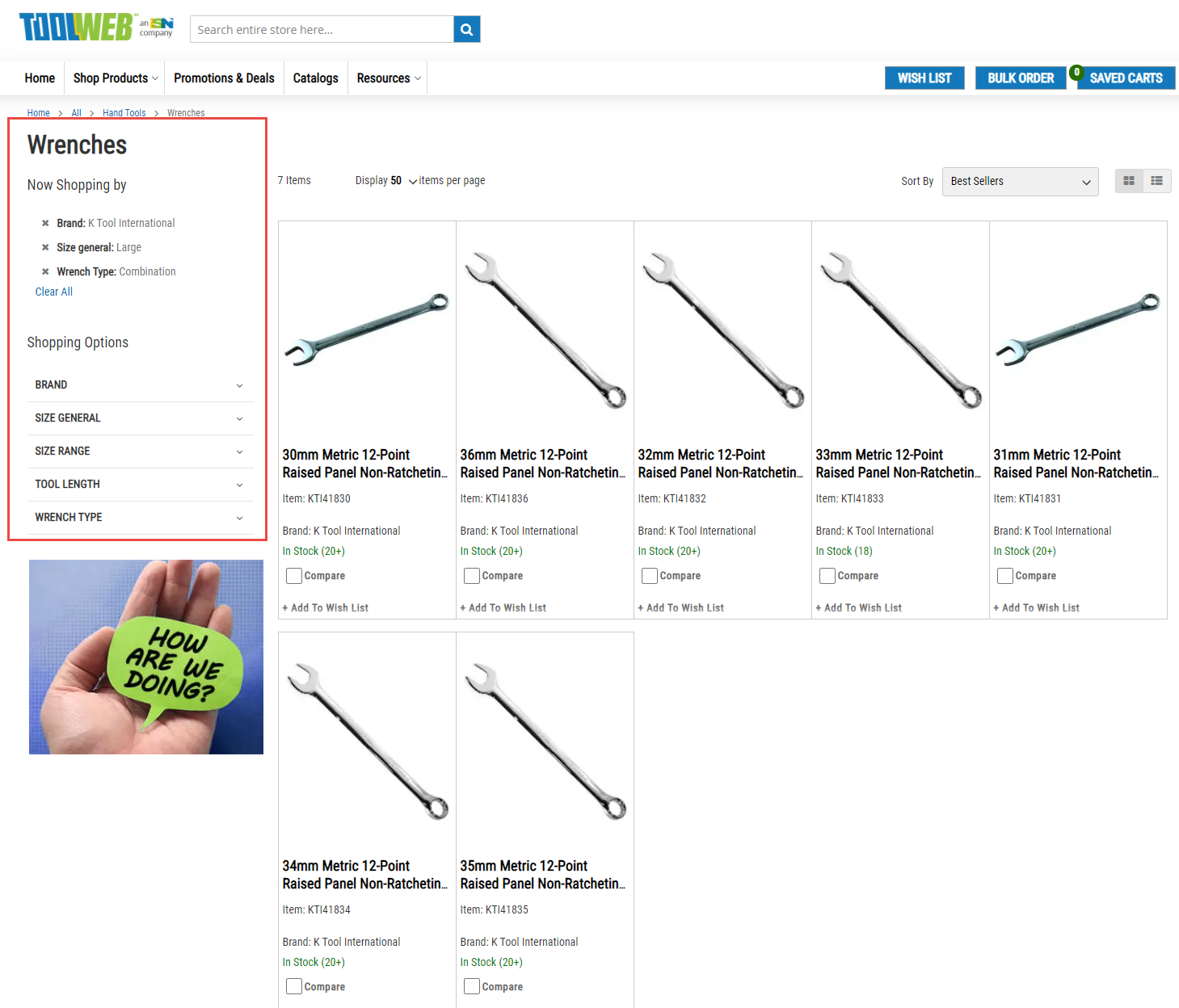
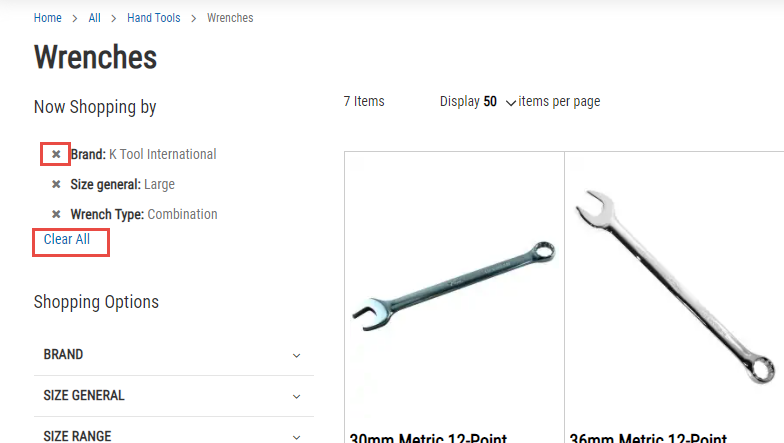
When a filter is selected it will be displayed underneath the “now shopping by” section on the top left of the page. Clicking the X next to a desired filter will remove it from the filtered list. You may also click the clear all button to remove all filters off the search page.
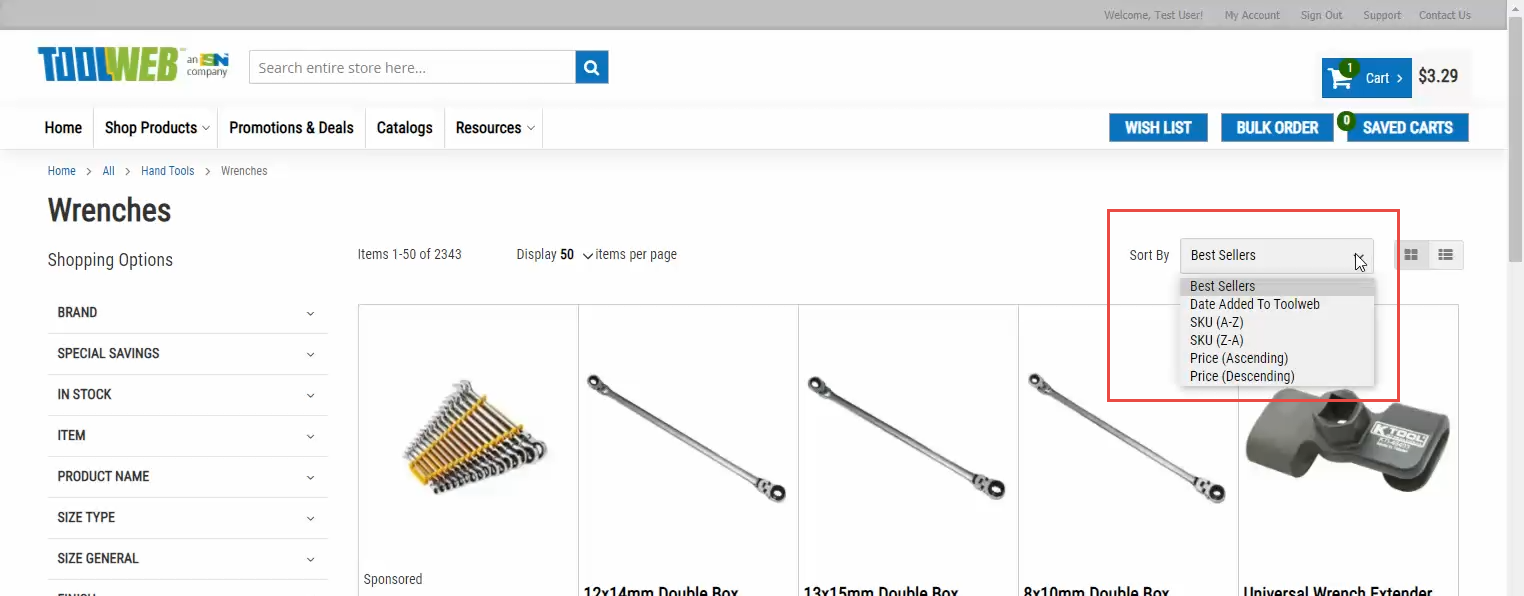
The “sort by” drop-down allows you to further sort the search results by best sellers, date added to toolweb, SKU (A-Z), SKU (Z-A), price (ascending), and price (descending). Combining filters and sort options will help narrow down results greatly.